
Share this content
Imagine this: every Monday morning at 8 AM, your clients receive a beautiful, up-to-date marketing report in their inbox. No action from you. No exporting. No attaching PDFs to emails. It just happens.
This is not a premium feature from some expensive tool. It is built right into Looker Studio — and when you pair it with Pro Plugg's live data connectors, you get a fully automated reporting pipeline that runs itself.
Let us walk through exactly how to set it up.
What Are Looker Studio Scheduled Emails?
Looker Studio has a built-in feature that lets you schedule automatic email delivery of any report. You choose the recipients, the frequency (daily, weekly, monthly, or custom), and the time. Looker Studio generates a PDF snapshot of your report and sends it automatically.
The report reflects whatever data is in the dashboard at the time of delivery. That means if your data sources are live — which they are with Pro Plugg connectors — the emailed report shows the latest numbers without any manual intervention.
If you have not built your dashboard yet, start with a free Pro Plugg template or learn how to build a cross-platform dashboard first.
Why This Changes Your Workflow
For Agencies: Scale Client Reporting
If you manage 10 clients, you probably spend 2-3 hours per client building weekly or monthly reports. That is 20-30 hours of report assembly every cycle.
With scheduled emails:
- Build the dashboard once with Pro Plugg connectors
- Schedule delivery to the client's email
- The report updates and sends itself, forever
You just freed up 20+ hours per month. That is time you can spend on strategy, optimization, or winning new clients. Agencies are one of the biggest marketing team use cases for automated delivery.
For In-House Teams: Keep Stakeholders Informed
Marketing managers, CMOs, and executives do not want to log into dashboards. They want information pushed to them. Scheduled emails deliver exactly that.
- Weekly performance summaries sent every Monday morning
- Monthly executive reports delivered on the 1st of each month
- Campaign-specific updates sent daily during launch periods
No one needs to ask "how are our ads performing?" The answer arrives automatically. Data teams love this because it removes the "can you pull the numbers?" requests entirely.
For Freelancers: Look More Professional
Nothing says "professional" like a client receiving a polished report on schedule without having to ask for it. Scheduled emails make you look organized and proactive — even while you sleep.
Step-by-Step: Setting Up Scheduled Email Delivery
Step 1: Build Your Report with Pro Plugg Data
First, connect your Pro Plugg data sources in Looker Studio. Choose the connectors you need — Meta Ads, Instagram Insights, TikTok Ads, LinkedIn Ads, or any from the full catalog — and build your report. Use a Pro Plugg template to get started fast.
Make sure your report includes:
- A clear date range filter (this determines what data the email captures)
- Key KPIs in scorecards at the top
- Trend charts showing performance over time
- A breakdown section with detailed metrics
For maximum impact, consider building a multi-connector cross-platform dashboard that covers all platforms in one report.
Step 2: Open the Schedule Menu
In your Looker Studio report:
- Click the dropdown arrow next to the "Share" button in the top-right corner
- Select "Schedule email delivery"
- A configuration panel opens
Step 3: Configure Recipients
Add the email addresses of everyone who should receive the report. You can add:
- Individual email addresses (clients, team members, executives)
- Your own email (for record-keeping)
- Multiple recipients — everyone gets the same report
Step 4: Set the Schedule
Choose your delivery frequency:
- Daily — Best for active campaign monitoring during launches
- Weekly — The sweet spot for most marketing reports. Choose the day and time (Monday at 8 AM is a popular choice)
- Monthly — Great for executive summaries and client retainers
- Custom — Set specific days or intervals that match your reporting cadence
Choose the time zone that matches your recipients. If your client is in New York, schedule delivery for 8 AM Eastern.
Step 5: Customize the Email
Add a subject line and optional message. Keep it professional:
- Subject: "Weekly Marketing Report — [Client Name]"
- Message: "Hi team, here is your weekly performance update. Key highlights are on page 1. Reach out if you have questions."
Step 6: Choose Pages to Include
If your report has multiple pages, you can choose which pages to include in the scheduled email. This is powerful because you can:
- Send the executive summary page to leadership
- Send the detailed breakdown to the marketing team
- Send platform-specific pages to specialized team members
Step 7: Activate and Forget
Click "Schedule" and you are done. Looker Studio will now generate and send the report on your chosen schedule. The data will always be current because Pro Plugg connectors pull live data from your marketing platforms.
Pro Tips for Better Scheduled Reports
Design for Email
Remember that scheduled emails deliver a PDF snapshot. Design your report with this in mind:
- Use large fonts for KPIs — they need to be readable on a phone screen
- Keep layouts clean — avoid cluttered charts that lose clarity when compressed to PDF
- Put the most important information first — executives often only look at the first page
- Use consistent colors for each platform so recipients can quickly scan the data
Use Smart Date Ranges
Instead of fixed dates, use relative date ranges like "Last 7 days" or "Last 30 days." This way, every scheduled delivery automatically shows the most recent period without you touching anything.
Create Multiple Schedules for Different Audiences
One report can have multiple email schedules. Set up:
- A weekly summary for the client
- A daily detailed report for your internal team
- A monthly overview for executives
Same dashboard, different delivery schedules, different page selections. Maximum flexibility.
Pair with Pro Plugg's Historical Data
Because Pro Plugg connectors provide up to 2 years of historical data, your scheduled reports can include year-over-year comparisons, seasonal trend analysis, and long-term growth tracking. This kind of depth makes your automated reports look like they were custom-built by a dedicated analyst.
Combine Multiple Connectors for Richer Reports
The most valuable scheduled reports pull data from multiple sources. Combine Meta Ads with Facebook Insights to show paid and organic together. Add TikTok Ads and TikTok Organic for full TikTok coverage. Learn more about which connector combinations deliver the best multi-source insights.
The Complete Automated Pipeline
Here is what your reporting workflow looks like once everything is set up:
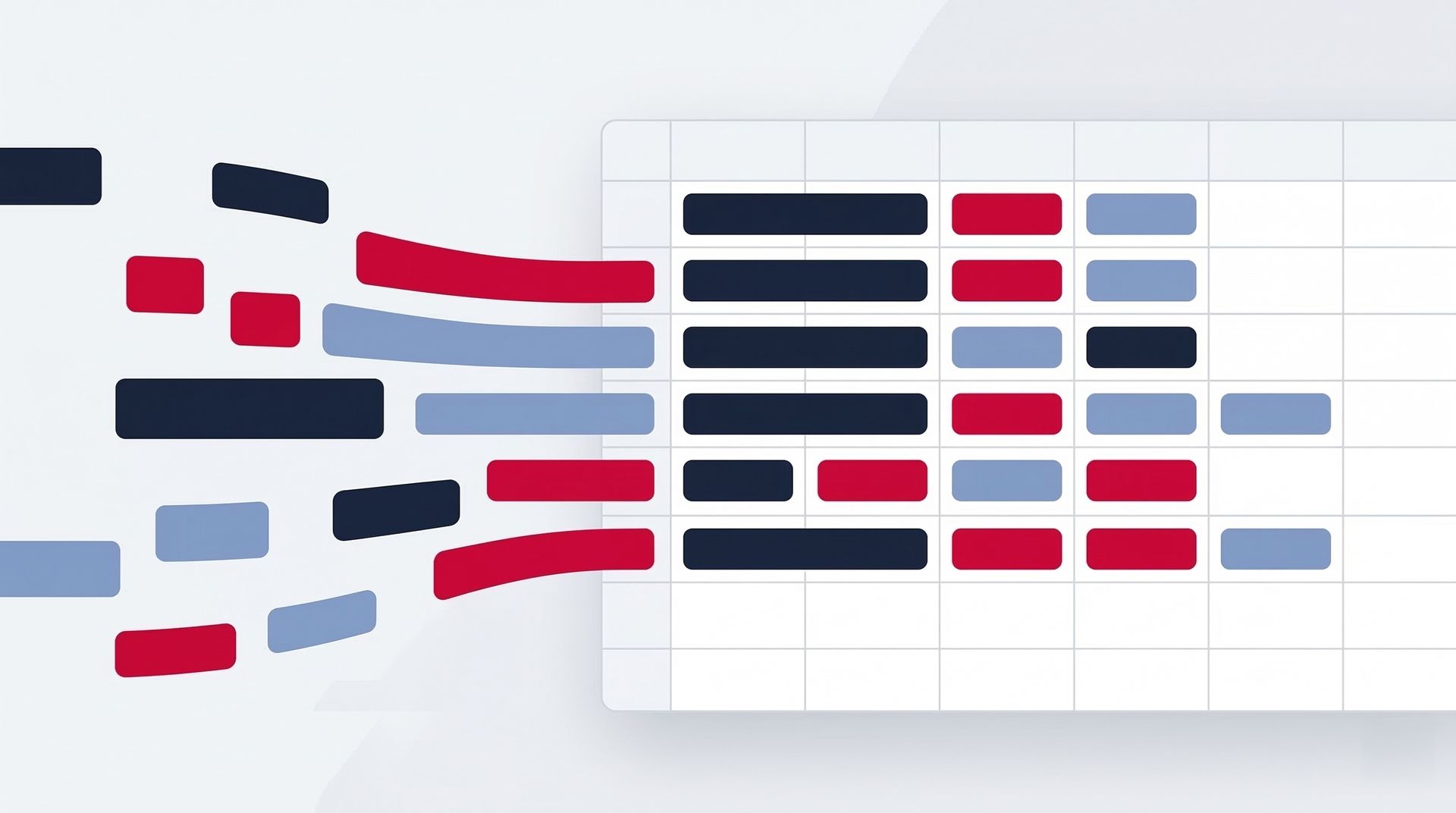
- Pro Plugg connectors pull live data from your marketing platforms (Meta, Instagram, TikTok, LinkedIn)
- Looker Studio dashboards visualize the data with your customized layout and templates
- Scheduled emails deliver PDF snapshots to the right people at the right time
No manual work. No data exports. No PDF attachments. No Monday morning scramble.
You built the pipeline once. It runs forever.
What If Something Changes?
- Need to add a new metric? Update the dashboard — the next scheduled email automatically includes the change.
- Need to add a new recipient? Edit the schedule — takes 10 seconds.
- Need to pause delivery? Disable the schedule and re-enable it later.
- Need a new data source? Add another Pro Plugg connector — the scheduled email picks it up on the next delivery.
The system is flexible because the foundation is solid: live data from Pro Plugg, professional visualization from Looker Studio, automated delivery from scheduled emails.
Real-World Use Cases
Digital agency managing 15 clients: Each client has a branded Looker Studio dashboard pulling data from Meta Ads and Instagram Insights. Weekly reports go out every Monday at 9 AM. Monthly deep-dive reports go out on the 1st. The agency has not manually built a report in six months.
E-commerce brand with a 3-person marketing team: A single cross-platform dashboard combines Meta Ads, TikTok Ads, and Facebook Insights. The CMO gets a weekly email. The paid media manager gets a daily one. Same report, different schedules.
B2B startup tracking LinkedIn performance: The LinkedIn Ads connector feeds a dashboard that is auto-emailed to the CEO every Friday. The report includes viral metrics that would otherwise require logging into Campaign Manager.
Start Automating Today
If you are still manually building and sending reports, you are spending hours on a task that should take zero time. The tools exist. The data is live. All you need to do is connect the dots.
Ready to get started?
Connect your data with Pro Plugg, build your dashboard with a free template, and set up scheduled emails today. Your future self will thank you. Start your free 30-day trial — no credit card required.
Share this content
Latest content


Ready to automate your reporting?
Join data-driven teams who save 10+ hours per week.
NO CREDIT CARD REQUIRED